People Directory
Purpose:
Maintain a directory of all users within your organization. This simplifies the process of assigning permissions and responsibilities.
Create People in Your Directory.
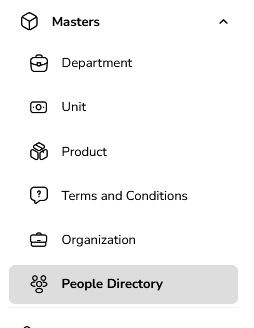
Go to Masters → People Directory.
Open Masters.
Click on People Directory.
Click on Add new Contact
Fill in User Details
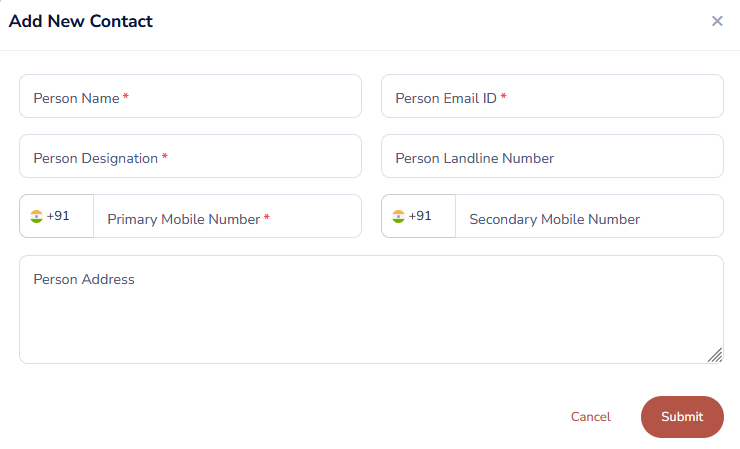
Person Name (Required).
Person Email ID (Required)—preferably official company email.
Person Designation
Person's Mobile Number (Required).
Person Address
Save
Click Submit.
Usage
- Use the people directory to add the contact person's name in the events.
Edit a Contact Details
Open People Directory
Go to People Directory.
Search for the User
Use name, email, or mobile no.

Click Edit
Update user details.
Save
Click Save.
Delete Contact Details
Open People Directory
Go to People Directory.
Delete a Contact (If Allowed)
Click the Delete icon.
System checks:
If contact is not linked to any events/approvals/transactions:
Deletion allowed.
If linked:
Deletion is blocked with an appropriate message.
Was this article helpful?
That’s Great!
Thank you for your feedback
Sorry! We couldn't be helpful
Thank you for your feedback
Feedback sent
We appreciate your effort and will try to fix the article