Department Master
Purpose:
Define all departments in your organization (e.g., Purchase, Finance, IT, Admin) and use them to tag events and users for tracking and reporting.
How to Create a Department
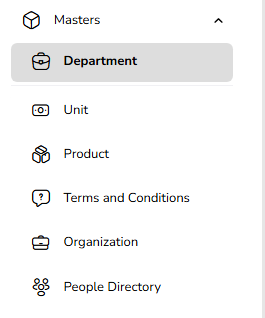
Go to Masters → Department
From the left navigation, open Masters .
Click on Department.
Click “Add New Department”
Opens a form or modal to create a department.
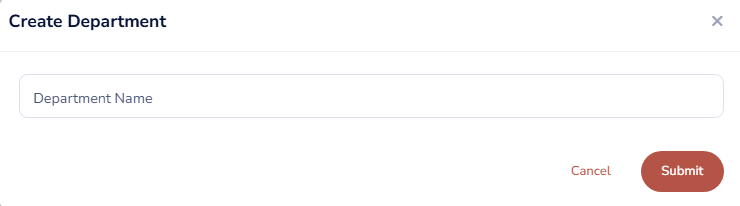
Fill in Department Details
Department Name (Required)
Example: “Purchase”, “Administration”, “Plant Maintenance”.
Save
Click Save .
System will:
Prevent duplicate department names.
Store the department for use in events.
Usage
While creating an RFQ or auction:
Select the Department from a dropdown in General Details.
In user management:
Optionally map users to their department.
Edit a Department
Open the Department List
Go to Masters → Department.
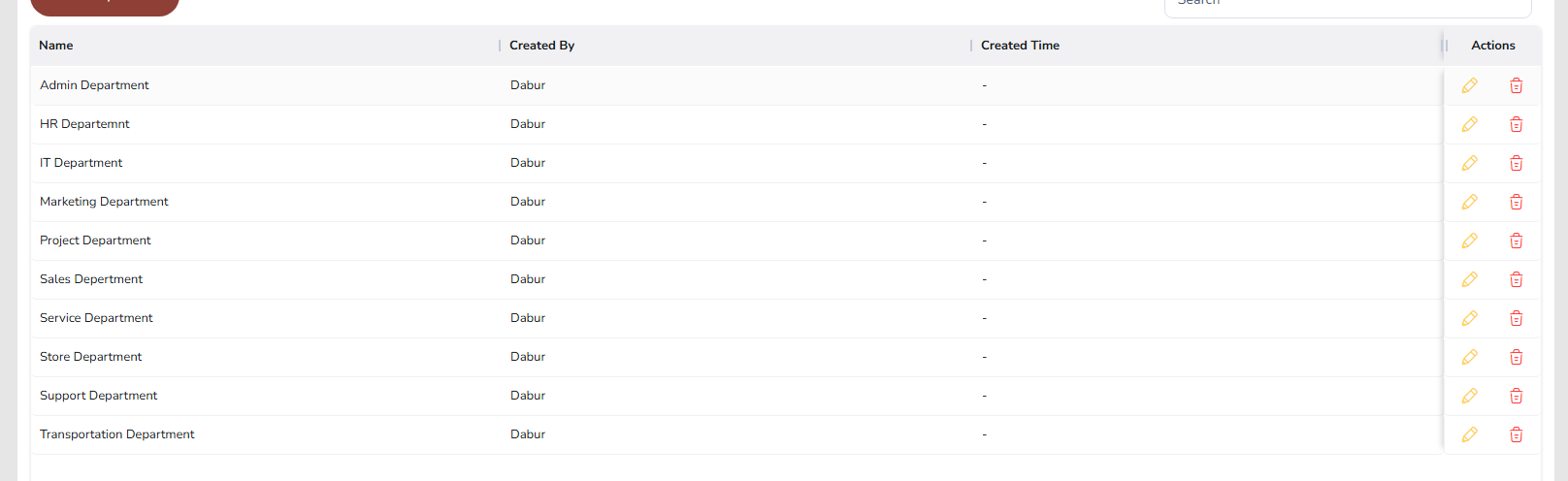
A table/grid of existing departments is displayed.
Find the Department
Use search or filters to locate the department you want to change.
Click Edit
Click the Edit (pencil) icon or “Edit” link on that row.
Update Fields
Change Name, Short Code, or Description as needed.
Ensure the updated name is still unique.
Save
Click Save / Update.
Changes will apply to future selections; historical records remain intact but show the latest name.
Delete a Department
Open the Department List
Go to Masters → Department.
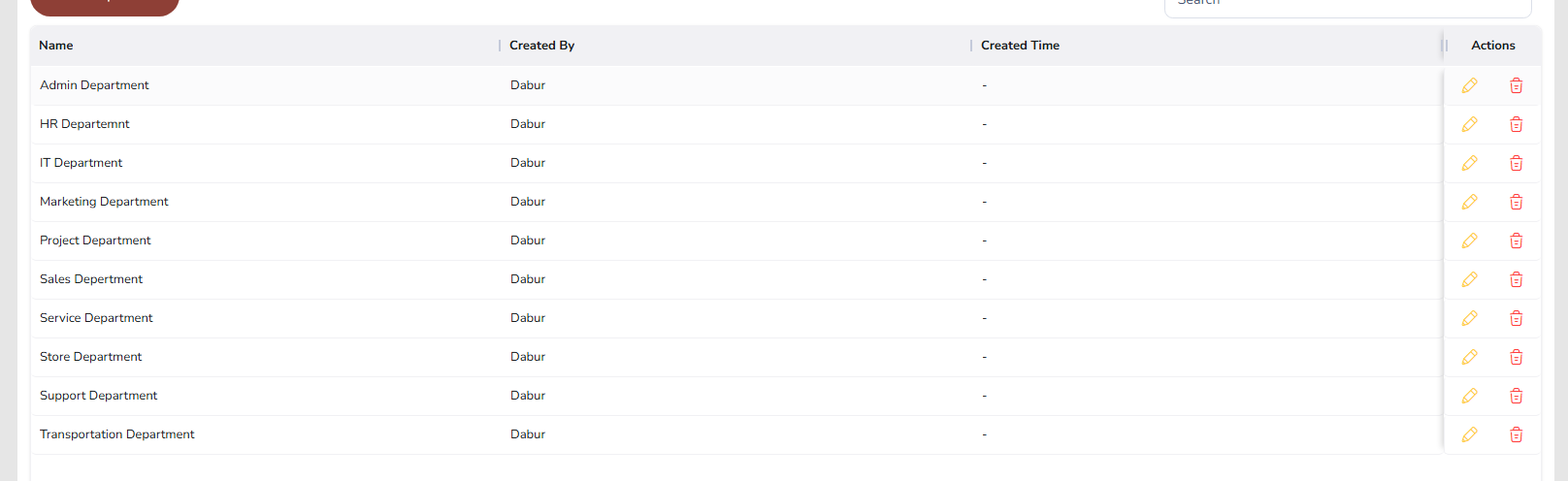
Click Delete
Click the Delete (trash) icon for the department.
System Validation
If the department is not used in any event or user:
Deletion is allowed.
Confirm when prompted.
If the department is already linked to events or users:
Deletion is blocked and an alert such as
“This department is linked to existing events/users and cannot be deleted.”
is shown.
Was this article helpful?
That’s Great!
Thank you for your feedback
Sorry! We couldn't be helpful
Thank you for your feedback
Feedback sent
We appreciate your effort and will try to fix the article