Participants can view, submit, and track their enquiries, pre-bids, live auctions, and historical activity.
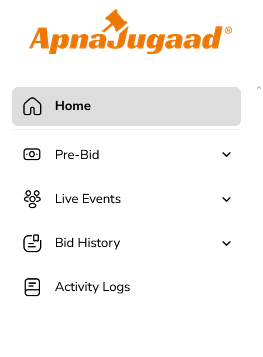
Home
The Home screen serves as the landing dashboard for Participant users after login. It provides a consolidated overview of all events associated with the participant. On this screen, users can see summary information such as the number of live enquiries, live reverse auctions, and live forward auctions. It also highlights upcoming events and recently closed events. From the Home page, participants can quickly navigate to Pre-Bid events, Live Events, or Bid History sections, making it easy to identify ongoing activities and take immediate action.
Pre-Bid
The Pre-Bid section displays all events where participants are required to submit initial quotations or values before the live event begins. These events remain editable only until the pre-bid end time.
Pre-Bid Reverse Auction
The Pre-Bid Reverse Auction screen lists all reverse auction events that are currently in the pre-bid stage and assigned to the participant. For each event, the participant can view details such as the Event ID, event title, buyer name, pre-bid start and end dates, and the current status. When a participant opens a specific event, they can view the event summary in read-only mode, including item details, quantities, units, taxes, and evaluation methodology. Participants can also download any attached documents such as tender specifications or drawings. Before submitting a quote, participants must review and accept the Terms and Conditions if they have not already done so. The pre-bid quote entry screen allows the participant to enter item-wise rates and other permitted commercial values. The participant can save the quotation as a draft or submit and update it any time before the pre-bid window closes.
Pre-Bid Forward Auction
The Pre-Bid Forward Auction screen displays forward auction events that are in the pre-bid stage. Each listed event shows the Event ID, event name, buyer, pre-bid timeline, and status. On opening an event, participants can review auction details such as lots or items, quantities, units, and any applicable floor or reference prices. Relevant documents can be downloaded, and Terms and Conditions must be accepted before participation. Participants are allowed to enter initial bid values for each lot during the pre-bid phase. These values can be saved or submitted until the pre-bid deadline expires.
Live Events
The Live Events section provides access to all events that are currently live or scheduled to go live shortly. This section is divided into Live Enquiry, Live Reverse Auction, and Live Forward Auction menus.
Live Enquiry
The Live Enquiry screen lists all enquiry or RFQ events that are upcoming, live, or nearing closure. For each enquiry, participants can view the Event ID, title, buyer name, start and end time, and event status. When a participant opens a live enquiry, they can review item details, quantities, units, and tax information. Documents and Terms and Conditions are available for review and acceptance. If permitted within the live window, participants can submit or update their quotation. After submission, participants can view a confirmation and summary of the values they have submitted.
Live Reverse Auction
The Live Reverse Auction screen allows participants to take part in real-time reverse auction bidding. It shows all reverse auction events that are currently live, about to start, or extended due to auto-extension rules. Inside a live auction, participants can see the current leading price as per auction rules, along with their own latest bid and rank. The bid entry panel enables participants to place a lower bid, subject to system validations such as minimum decrement rules. The screen also displays the participant’s bid history with timestamps and a live countdown timer showing remaining or extended auction time. If enabled by the buyer, a participant may also have the option to declare no further bidding.
Live Forward Auction
The Live Forward Auction screen provides access to forward auctions where participants place competitive upward bids. Within a live forward auction, participants can view the current highest bid, their own bid, and their position if configured. The bid entry panel allows submission of higher bids in accordance with minimum increment rules. The participant’s bid history and a live auction timer are also displayed, ensuring transparency throughout the bidding process.
Bid History
The Bid History section allows participants to review their past participation across enquiries, reverse auctions, and forward auctions. All information in this section is available in read-only mode.
Bid History – Enquiry
The Bid History Enquiry screen lists all enquiry or RFQ events in which the participant was invited or submitted a quote. For each event, participants can see details such as the Event ID, title, buyer, submission date, and final status. Opening an event shows the item-wise quotation and commercial values submitted by the participant. These records cannot be edited once the event is closed.
Bid History – Reverse Auction
The Bid History Reverse Auction screen displays all completed reverse auctions in which the participant took part. Participants can view the event details along with a complete sequence of bids they placed during the auction. The final bid and, where configured, the final rank or result are also visible.
Bid History – Forward Auction
The Bid History Forward Auction screen shows completed forward auction events joined by the participant. On opening an event, participants can review all bids they placed, their final bid value, and any outcome information made available by the buyer, depending on system configuration.
Activity Logs
The Activity Logs screen provides a detailed audit trail of all actions performed by the logged-in participant. This includes activities such as login and logout, viewing events, submitting or updating pre-bids, placing auction bids, and accepting Terms and Conditions. Each log entry records the date, time, activity description, and related Event ID where applicable. This section helps participants verify whether actions were successfully completed and resolve questions related to submission timing or participation history.
Was this article helpful?
That’s Great!
Thank you for your feedback
Sorry! We couldn't be helpful
Thank you for your feedback
Feedback sent
We appreciate your effort and will try to fix the article