To add a new product category, follow these steps:
1. Navigate to 'Masters': From the main navigation menu, go to the 'Masters' section.
2. Select 'Product Categories': Within 'Masters', choose the 'Product Categories' option.
3. Add New: Click the 'Add New Category' button.
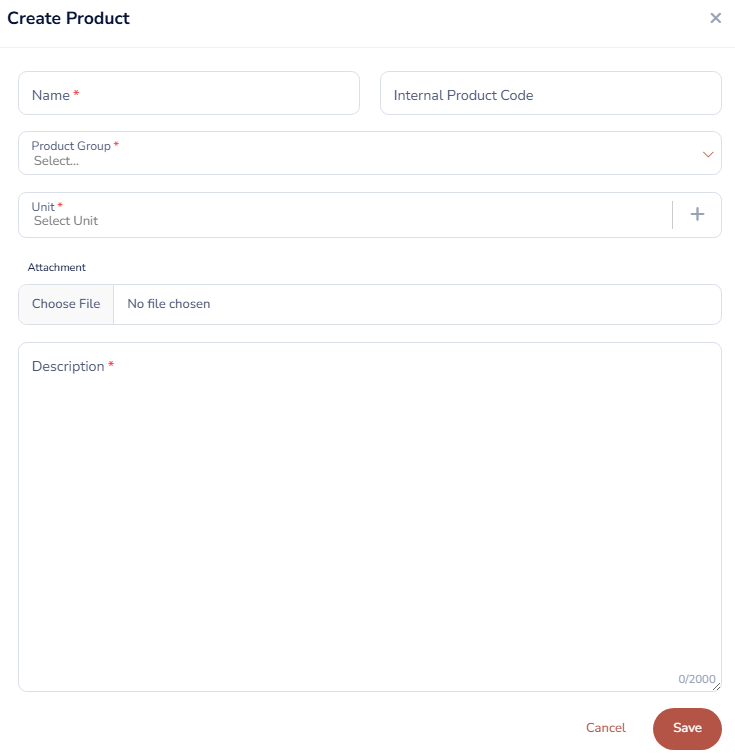
4. Enter Details and Save:
- Name of your new product: This is the primary name you will use to identify the product. It should be clear and concise.
- Internal Product Code is a unique identifier that your organization assigns to a product for its own internal use.
- Product Category: This is a pre-defined group that your product belongs to (e.g., Access Control System, Electronics, Office Supplies, Raw Materials). Assigning a category helps with organization and searching. You can choose from the categories you've already created in the 'Product Categories' master.
- Product Unit: This specifies the unit of measurement for the product (e.g., pieces, kilograms, meters, hours). This ensures consistent quoting and ordering. You can select a unit from the master list you've created in the 'Unit' category.
- Attachment: This allows you to upload relevant files, such as product specifications, technical drawings, or images. This provides vendors with a complete understanding of the product.
- Description: This is a detailed text field where you can provide a thorough explanation of the product's features, purpose, or other important information. A good description helps to avoid confusion and ensures accurate bids and click on 'Save'.
Was this article helpful?
That’s Great!
Thank you for your feedback
Sorry! We couldn't be helpful
Thank you for your feedback
Feedback sent
We appreciate your effort and will try to fix the article