Steps to Register in ApnaJugaad:
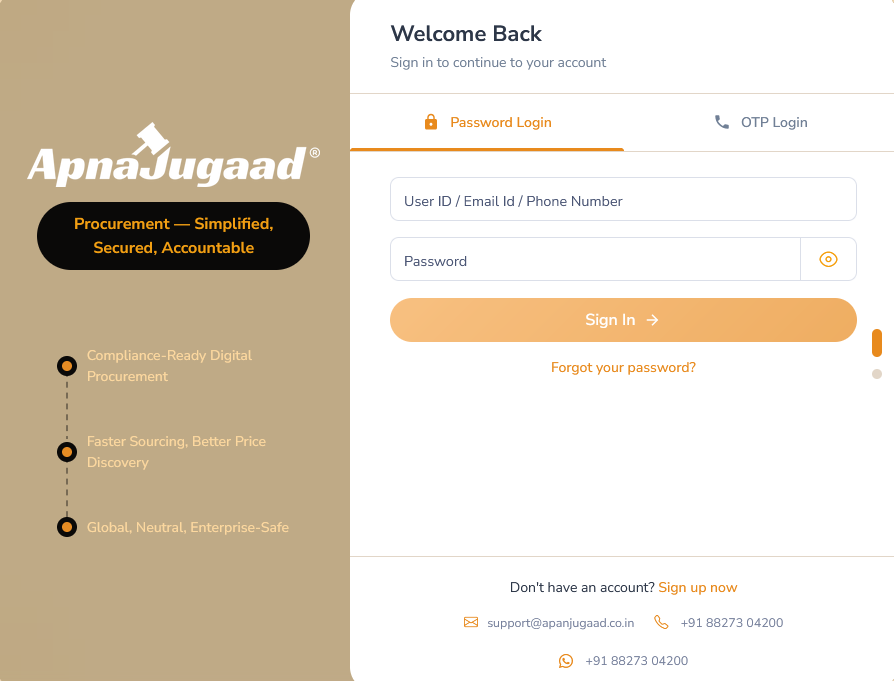
1. To begin, you will need to access the portal's login page. Simply navigate to https://v3.apnajugaad.co.in/auth.
2. Click on the 'Sign Up Now' button located on the homepage. This will take you to the registration form.
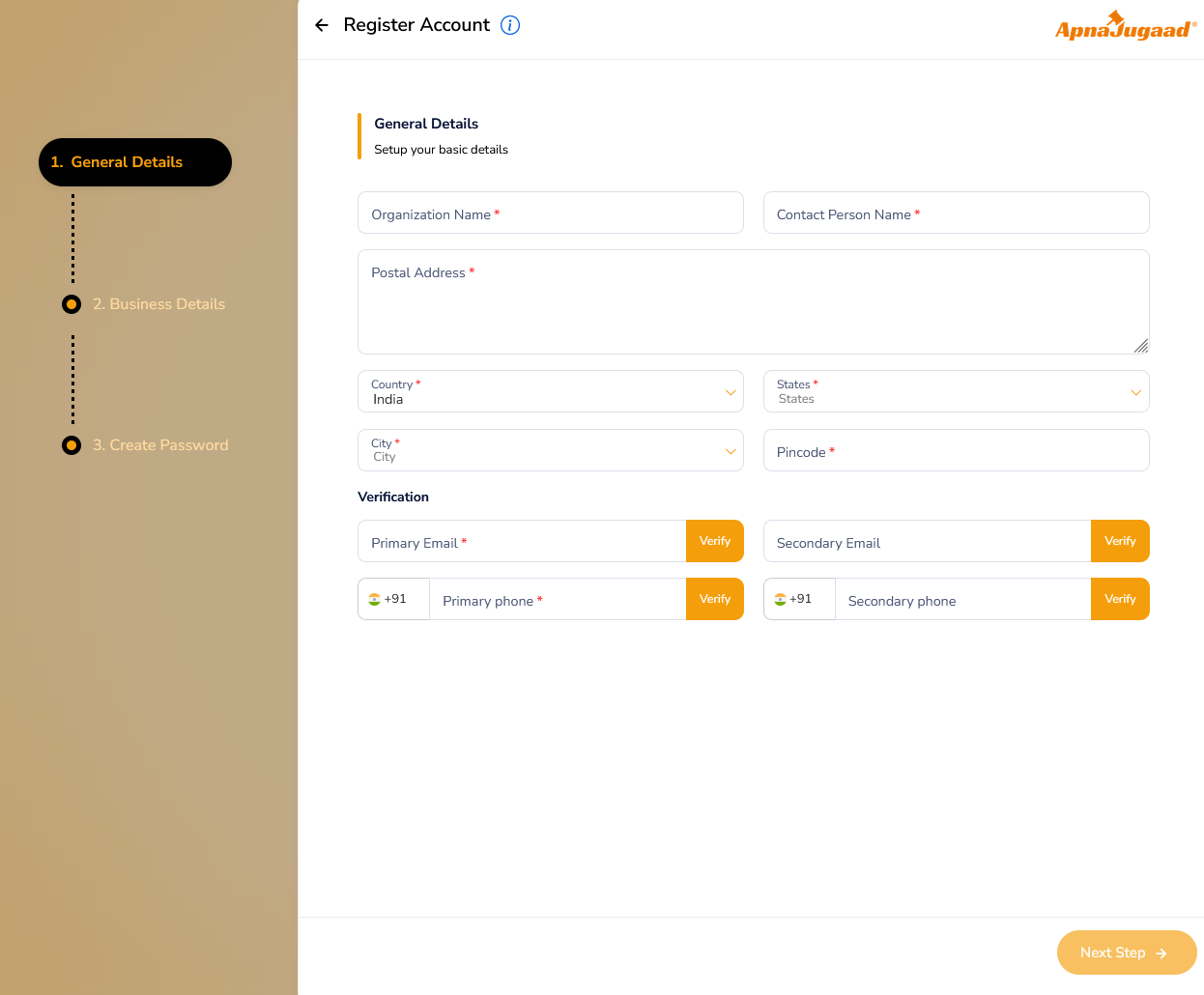
3. Registration form is designed to capture your basic company and contact details. You should have the following information ready:
General Details:-
(I) Your Organization's Name
(II) Contact Person's Name (this could be you or someone else responsible for the account)
(III) Your full postal address, including City, State, and Pincode
(IV) A valid primary email and phone number for verification purposes. You may also provide secondary contact details. (Make Sure You use unique Email and phone number, that does not exist in the system.
Business Details:-
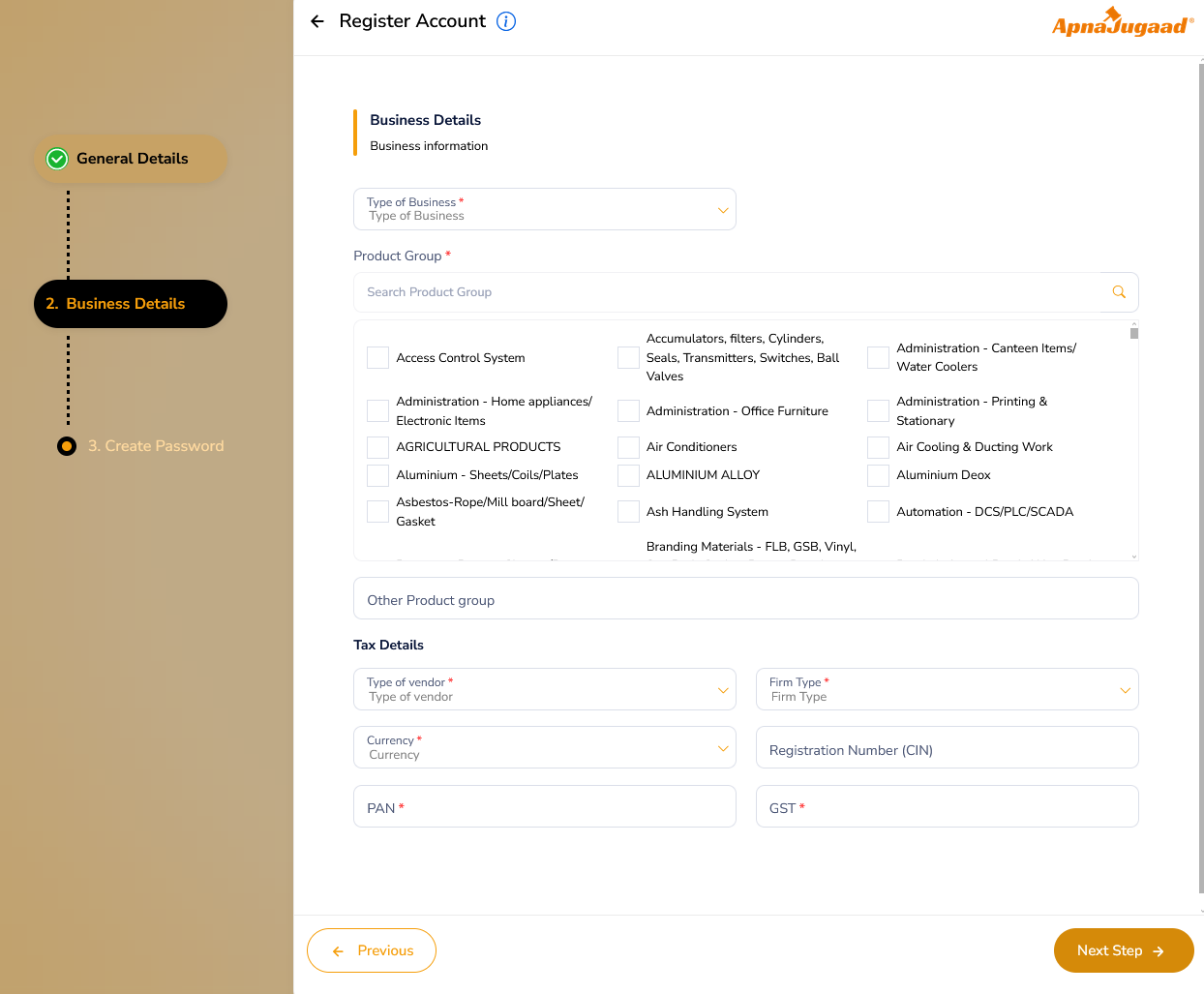
This is the second step of registration and is crucial for properly setting up your account. The information you provide helps the portal understand your role and business needs. This ensures you are connected to the right suppliers and are able to make the appropriate purchases.
(I) Type of Business: This field defines your role within the portal's ecosystem, such as a manufacturer, trader, or service provider.
(II) Product Group: Here, you should select the product categories that are relevant to your business. For example, if your department frequently purchases office supplies, you would select "Administration - Office Furniture" or "Administration - Printing & Stationary." This helps tailor your portal experience to show you relevant items.
(III) Tax Details: This section is for providing your official government-issued business identifiers. Providing your Registration Number (CIN), PAN (Permanent Account Number), and GST (Goods and Services Tax) details is a standard legal and financial requirement for business transactions in India. This information ensures that all purchases and transactions made through the portal are compliant and correctly recorded.
(IV) Type of Vendor (GST Registration Type)
This field identifies how you are registered under GST and directly affects what tax details are required and how your invoices are treated.
Options:
URD (Unregistered Dealer)
Composite Dealer
(GST Registered)
(V) Firm Type (Legal Form of the Company)
This field captures the legal constitution of your business, as registered with government authorities.
Options:
Proprietorship – Single owner, not a separate legal entity.
Partnership Firm – Registered partnership with two or more partners.
LLP (Limited Liability Partnership) – Partnership with limited liability protection.
Private Limited Company – Company registered under Companies Act with private shareholding. Public Limited Company – Company that may have public shareholding and stricter compliance.
Create Password:-
The final step, this is where you will set up the secure password for your account, which you will use for all future logins.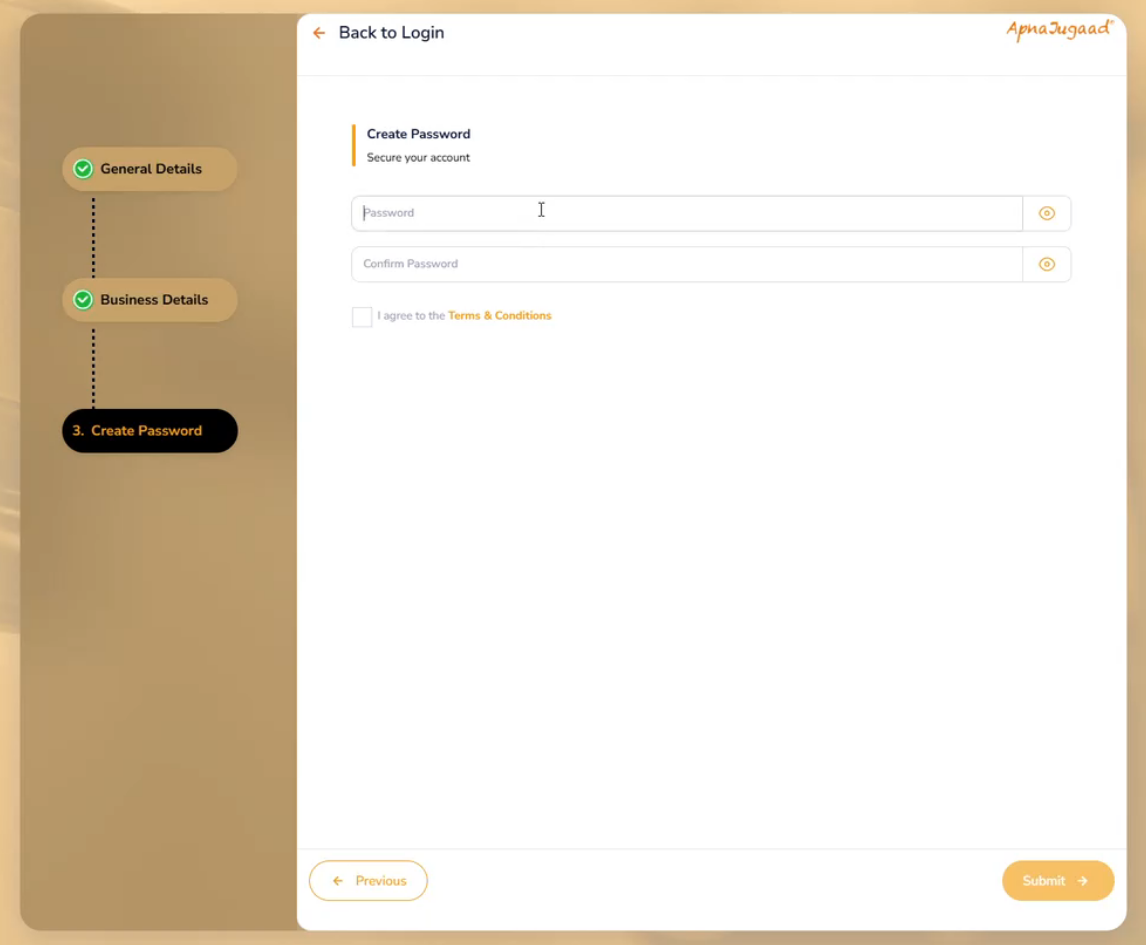
4. Before you can complete your registration, you must check the box to agree to the "Terms & Conditions". This is a standard legal requirement, indicating that you have read and agree to abide by the rules and policies for using the portal. It is important to review these terms to understand your rights and responsibilities.
5. Once you have filled in all the required information and created your password, click the "Submit" button. The portal will then process your registration request. You will receive an email confirmation once your account has been successfully created and activated, allowing you to log in and begin using the portal.
Was this article helpful?
That’s Great!
Thank you for your feedback
Sorry! We couldn't be helpful
Thank you for your feedback
Feedback sent
We appreciate your effort and will try to fix the article